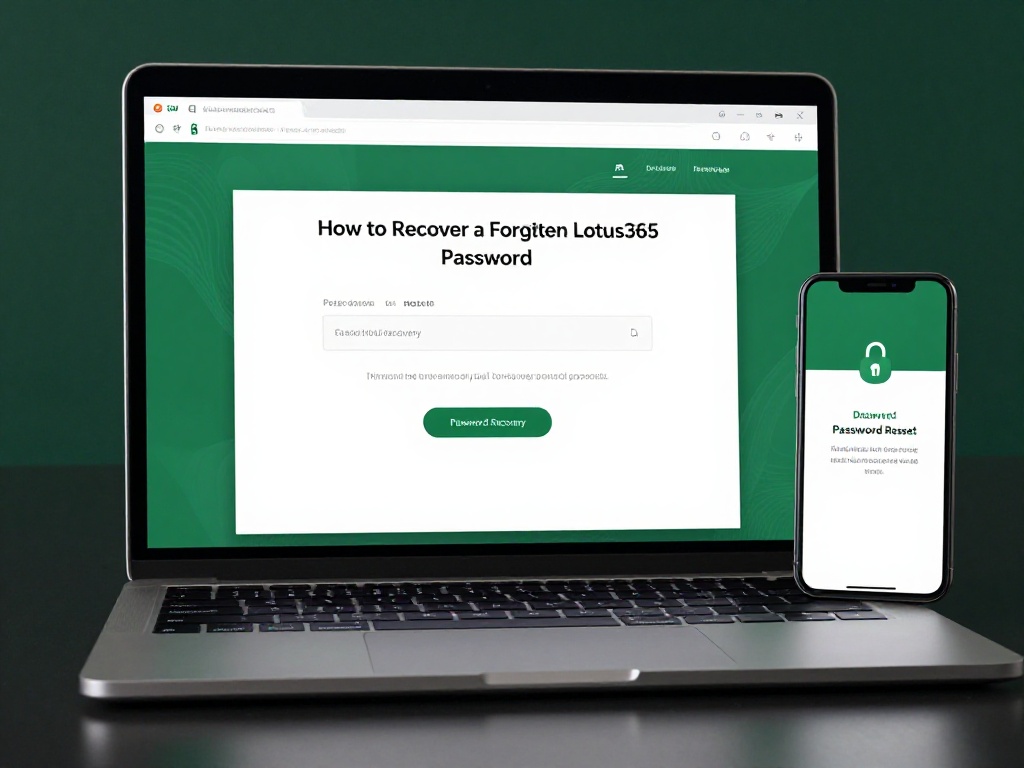
How to Recover a Forgotten Lotus365 Password
You open the app, enter your details, and the login fails. You try once more. Same result. Then you realize you simply don’t remember your password. This happens to many users, especially those who switched phones, cleared their browser, or haven’t logged in for a long time. The recovery process itself is not complicated, but a few common mistakes waste time or put your account at risk.
This guide walks you through each step, including what to do when things don’t go as planned.
A Note on the Legal Status of Lotus365 in India
Lotus365 is an online betting platform. Before you log in or use any betting service, it’s important to understand where things stand legally. The Promotion and Regulation of Online Gaming Act, 2025 (PROG Act) prohibits online money games at the national level in India, and the Supreme Court upheld this law in May 2026. States like Telangana, Andhra Pradesh, and Maharashtra have their own additional bans in place. The legal position varies from state to state, so check the rules that apply where you live before using any online betting platform.
Why Users Forget Their Lotus365 Password
Most people forget their password for simple reasons. They created an account months ago, relied on the browser to save it, and then switched to a new device where autofill wasn’t set up. Others pick a password that felt memorable at the time but wasn’t. A smaller group ends up on look-alike sites where credentials behave differently.
Whatever the reason, recovery always starts at the official website. Never use links from WhatsApp groups, forwarded SMS messages, or third-party pages. These often lead to fake sites designed to steal your login details.
How to Recover a Forgotten Lotus365 Password (Step by Step)
Step 1 Go directly to the official website
Open your phone’s browser and type the official Lotus365 web address yourself. Do not click a link from a message or social media. Scammers create sites with names that look almost the same as the real one. Check the domain carefully before entering anything.
Step 2 Click Forgot Password on the login page
Below the password field on the login screen, you’ll find a link that says Forgot Password. Click it. If you’ve also forgotten your account ID or username, there’s usually a separate Forgot ID option on the same page. These are two different steps for two different problems, so pick the right one first.
Step 3 Enter your registered mobile number or email
The next screen asks for the phone number or email address you used when setting up your account through the lotus365 signup page. Type this carefully. Even one wrong digit means the OTP will go to the wrong place and you’ll have to start over.
Step 4 Verify using the OTP
A one-time password (OTP), usually 4 to 6 digits, will be sent to your registered number via SMS or to your email inbox. Enter it on the verification screen. This code expires quickly, so enter it within a few minutes of receiving it.
Do not share this OTP with anyone, including someone claiming to be from Lotus365 support. No genuine support team will ask for your OTP.
Step 5 Create a new password
Once the OTP is accepted, the site takes you to the password reset screen. Enter a new password that you haven’t used before on this account. A few tips on choosing a strong one appear later in this article.
Step 6 Log back into your account
Return to the main login page of lotus365 and sign in with your new password. If you use the mobile app, update your saved credentials there as well so autofill doesn’t fill in the old one.
What to Do When the OTP Doesn’t Arrive
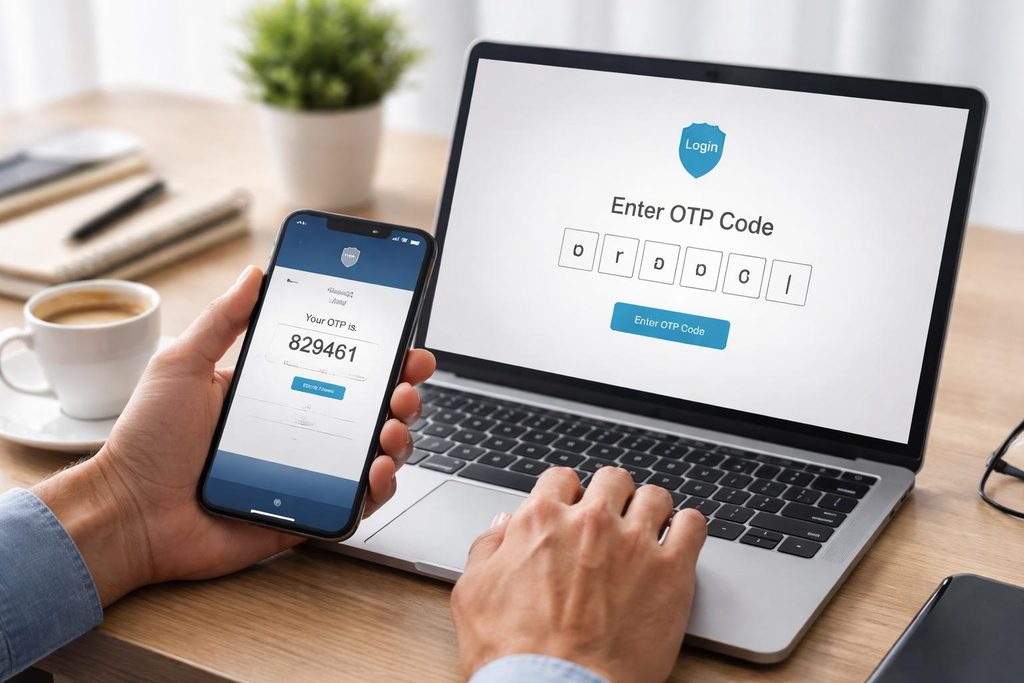
This is where most guides stop helping, and where users often get stuck. If the OTP hasn’t arrived within two to three minutes, work through these checks one by one.
- Check your network signal. A weak mobile connection can delay SMS delivery. Move to an area with better signal and wait a minute.
- Check for DND settings. If your SIM has Do Not Disturb (DND) enabled for promotional or transactional messages, the OTP may be blocked. Contact your telecom provider or adjust the DND category settings through their app.
- Check your spam folder. If you’re expecting an email OTP, the message may have been filtered. Look in spam or junk before assuming it wasn’t sent.
- Use Resend OTP once. Hit it once and wait. Clicking it multiple times quickly can cause the system to temporarily block further requests.
If none of these work and you suspect your registered phone number is no longer active, move straight to customer support.
When You’ve Forgotten Your ID As Well
| Situation | What to Use | What You’ll Need |
|---|---|---|
| Forgot password only | Forgot Password option | Registered phone or email |
| Forgot ID or username | Forgot ID option | Registered phone or email |
| Forgot both | Forgot ID first, then Forgot Password | Registered phone or email |
| No access to registered contact | Contact customer support | Account details for identity check |
If you’ve forgotten both your ID and your password, always start with Forgot ID. You’ll go through an OTP verification step to retrieve it, and once you have the ID, you can reset the password separately.
Reaching Customer Support

If self-service recovery doesn’t work because you’ve lost access to the phone number you registered with, contact the Lotus365 support team directly. They typically offer help through live chat on the official website, WhatsApp, and email. When you reach out, be prepared to provide details that confirm you own the account, such as your full name, approximate registration date, or the city and device you usually log in from.
One firm rule never give your OTP, new password, or bank details to anyone on chat, even if they say they are from the support team. Genuine support agents do not need any of these to help you.
How to Avoid This Problem Next Time
Once you’re back in, take a few minutes to set up better habits.
A 2025 Comparitech study that looked at over 2 billion leaked passwords found India@123 among the most commonly compromised credentials. Patterns involving a name, city, or year followed by a short number are cracked quickly. Avoid them.
A better method is to use a passphrase: three or four unrelated words connected with numbers and symbols. Something like Rain9Cycle#Desk is long, harder to guess, and easier to remember than a random jumble of characters. India’s the government’s official cybersecurity body, advises users to keep passwords unique across different platforms and to avoid personal information in them.
If you use several platforms, a free password manager like Bitwarden can store your logins securely so you don’t have to remember each one individually.